Settings
Dotient has three tabs of settings: Appearance for visual customization, Algorithm for search tuning, and Embedding for model management.
Opening Settings
Press Ctrl+, or click the gear icon at the bottom of the sidebar. The settings modal opens over whatever you are currently looking at. Press Escape or click outside to close.
Appearance Tab
Theme Mode
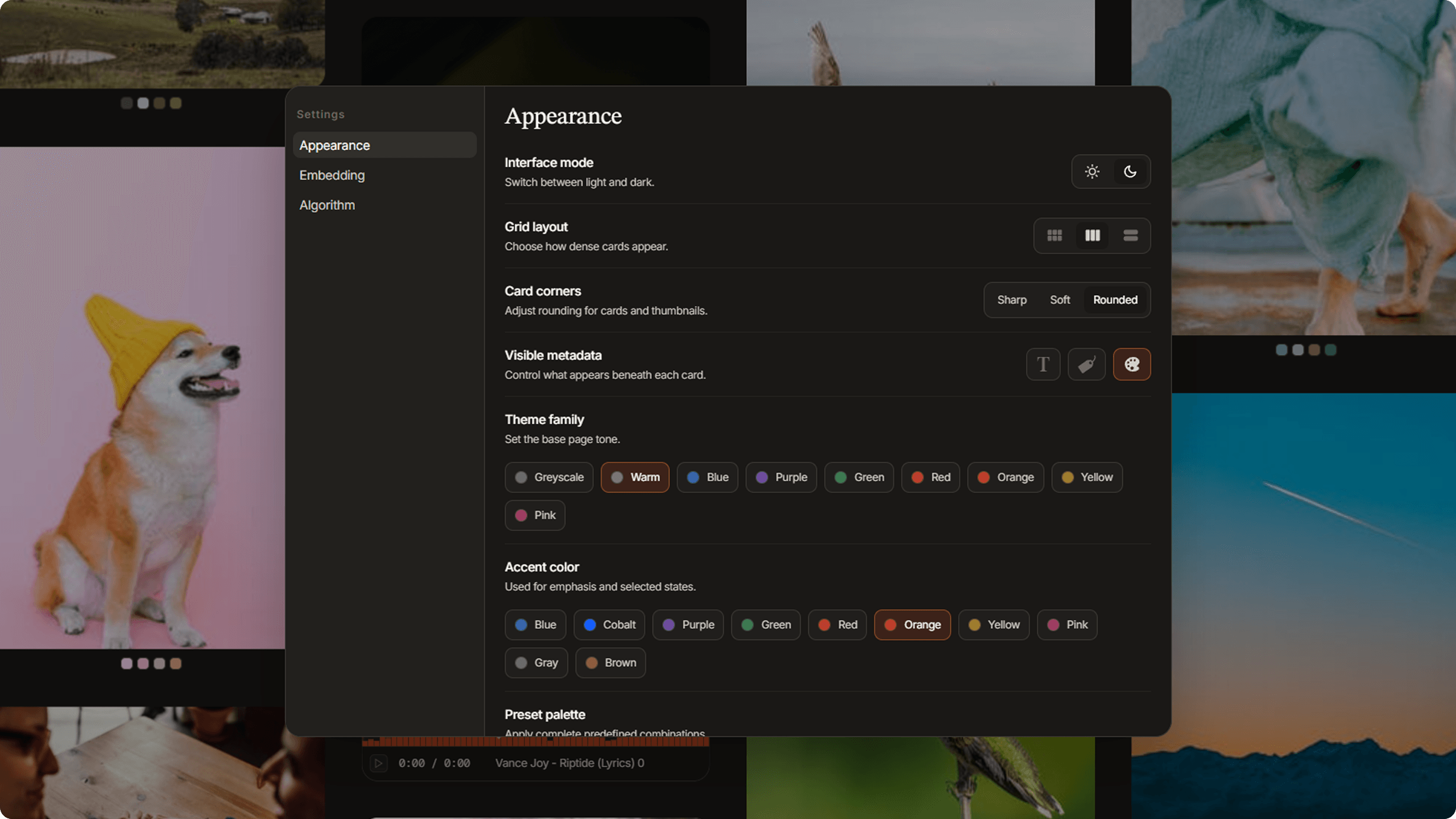
Toggle between Light and Dark mode. Light mode uses a warm, creamy background inspired by Notion. Dark mode uses a deep charcoal background. Your preference is remembered across sessions.
Color Theme
Nine color themes change the overall feel of the UI: Greyscale, Warm, Blue, Purple, Green, Red, Orange, Yellow, and Pink. Each one adjusts the accent colors, backgrounds, and UI chrome to match the mood. You can also access these from the command menu (Ctrl+K).
Accent Color
Ten accent colors let you fine tune the highlights: Blue, Purple, Green, Red, Orange, Yellow, Pink, Gray, Brown, and Cobalt. Each comes with both light and dark variants that adapt to your theme mode.
Theme Presets
Presets are curated combinations of theme and accent colors. Five built-in presets are available: Matcha, Catppuccin, Gruvbox, Midnight Cream, and Walnut. When a preset is active, the accent color selector is disabled because the preset defines its own.
Item Rounding
Three levels of corner rounding for gallery items: Sharp (0px, clean corners), Soft (12px, subtle rounding), and Rounded (18px, pill-like edges).
Column Size
Controls the density of the gallery grid. Compact (250px columns) fits more items on screen. Balanced (350px) is the middle ground. Comfortable (450px) gives each item more room to breathe.
Metadata Visibility
Toggle three types of metadata shown on gallery items independently: Title, File Type badge, and Color chips. This is useful if you want a cleaner look or if you need more context.
Algorithm Tab
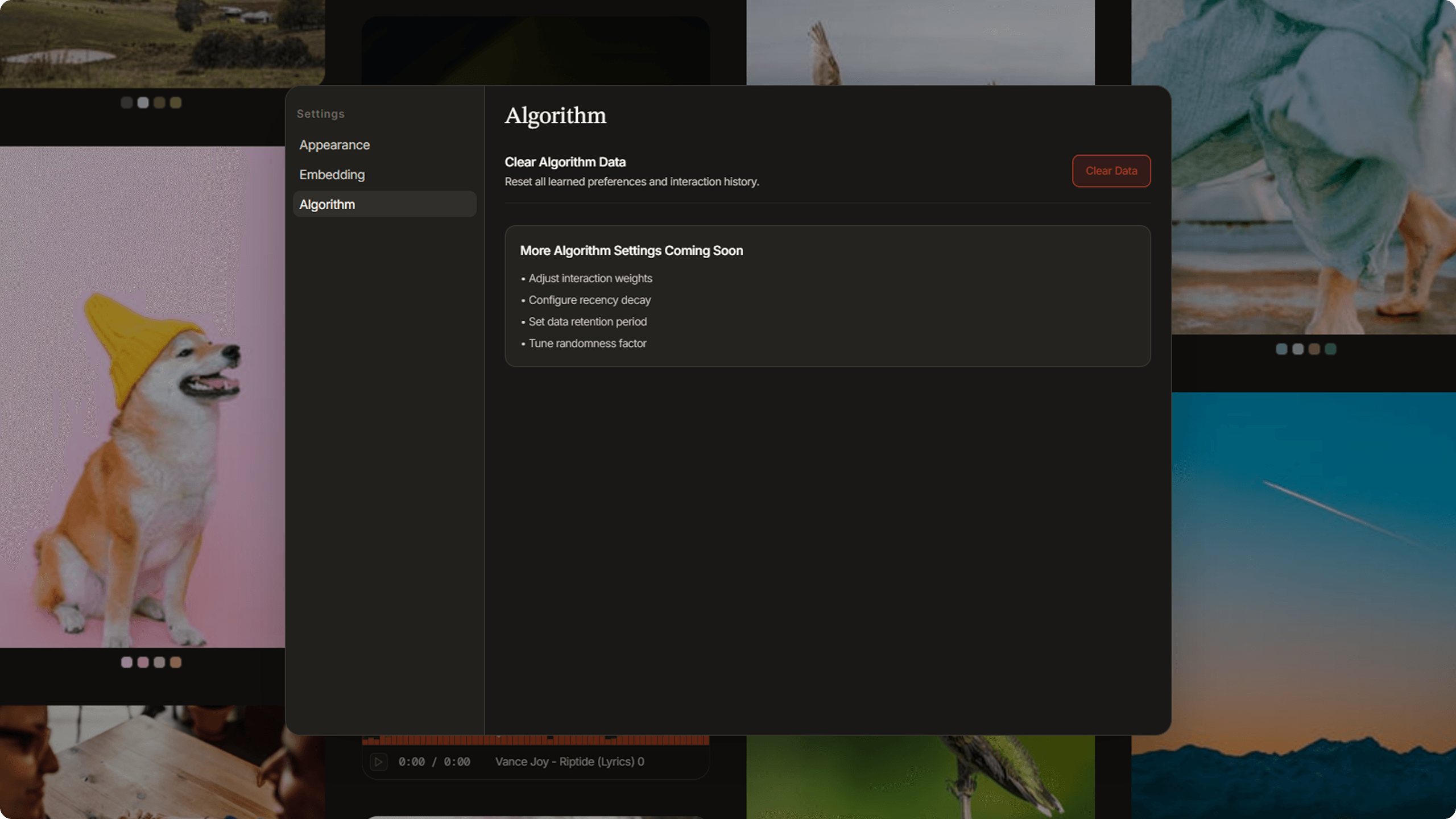
This tab is unfinished, but big plans for it will come. It will allow users to full customize what their top results are based on the way they browse through their archive
Clear Algorithm Data
There is a button to clear all interaction data (clicks, dwell time, etc.) that the algorithm has collected. This resets the personalization and starts fresh.
Embedding Tab
This tab is also unfinished, but it will allow users to customize their embedding experience, whether they want to use 100% of their CPU and memory power to embed files really fast, but also make everything else slow. Or whether they want to use a very small amount of their compute, so they can import files in the background while being able to use the app perfectly normal.
Command Menu Shortcuts
Many settings are also accessible through the command menu (Ctrl+P). The command menu has an Appearance submenu with theme mode, color themes, accent colors, and presets. This is faster than opening Settings when you just want to switch themes, as it is completely keyboard based.