Getting Started
From download to your first search. This guide covers everything you need to get Dotient up and running.
System Requirements
Dotient is a desktop app built with Tauri, which keeps the binary small and the memory usage reasonable. The ML models run entirely on your machine using ONNX Runtime, so there is no cloud dependency and no data ever leaves your computer.
The app idles at around 150MB of RAM in the webview process. When you import files and embeddings start processing, the backend process jumps from about 30MB to around 270MB. Processing time for 100 images depends a lot on resolution, but expect anywhere from 80 seconds to 400 seconds. A modern CPU with at least 8GB of RAM is recommended. GPU acceleration is not required, but it can help with larger archives.
Installation
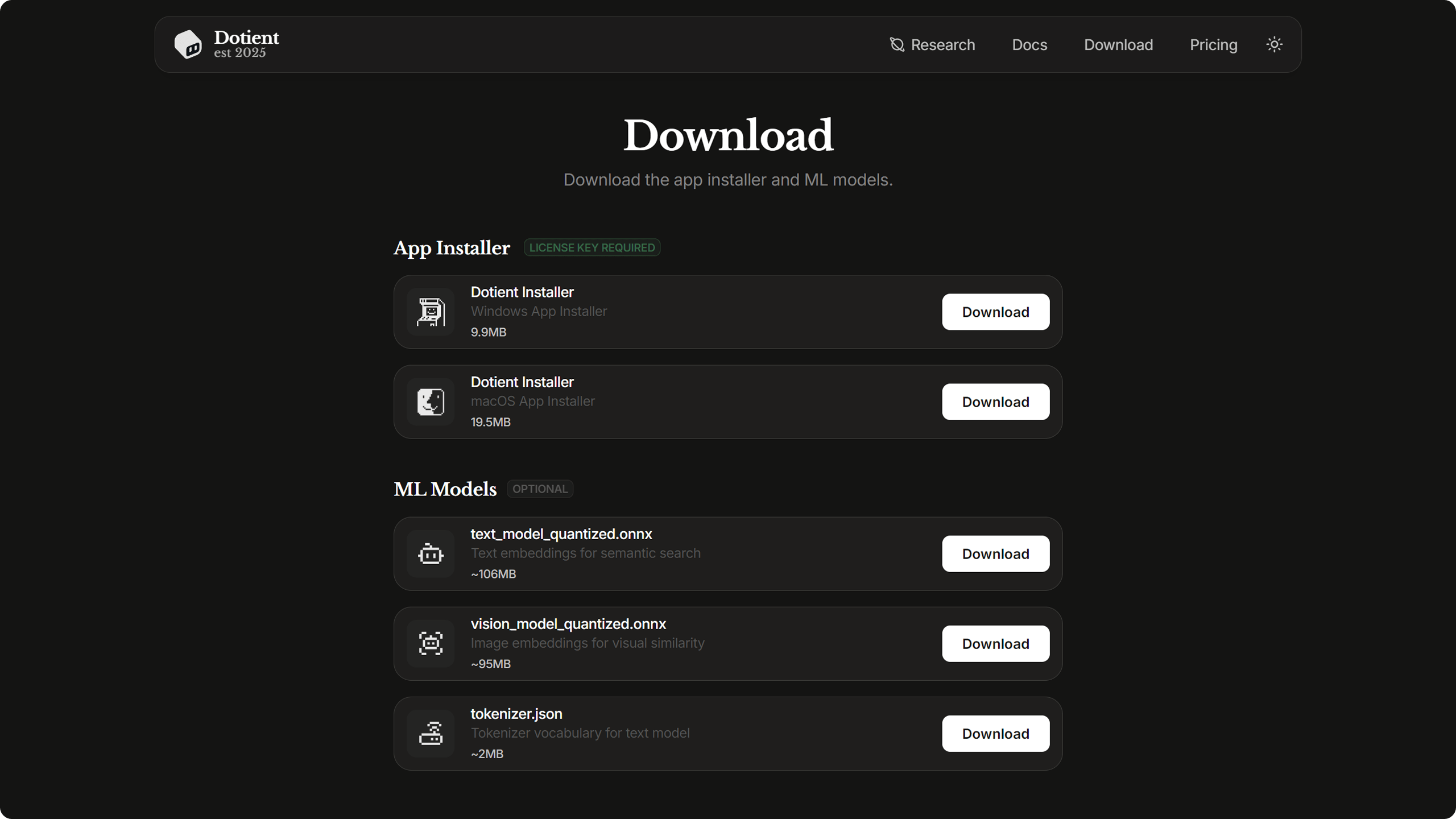
Head to the Download page to get the latest installer for your platform. Dotient supports Windows, macOS, and Linux. The installer includes everything you need, including the ML models for embedding and search.
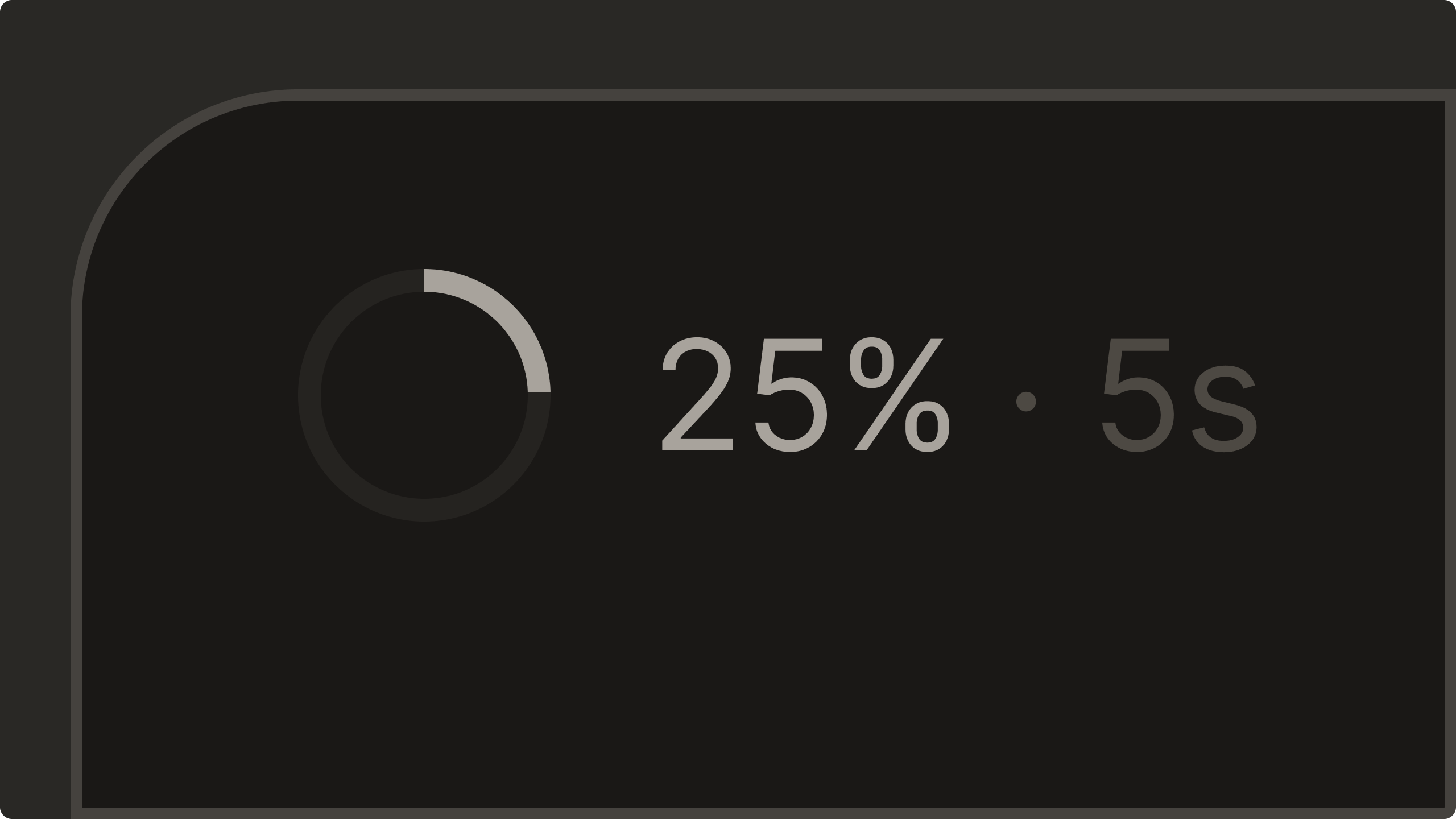
On first launch, Dotient will download the ML models if they are not bundled with your installer. You will see a progress bar in the bottom left of the window showing model download status. This only happens once.
Activation
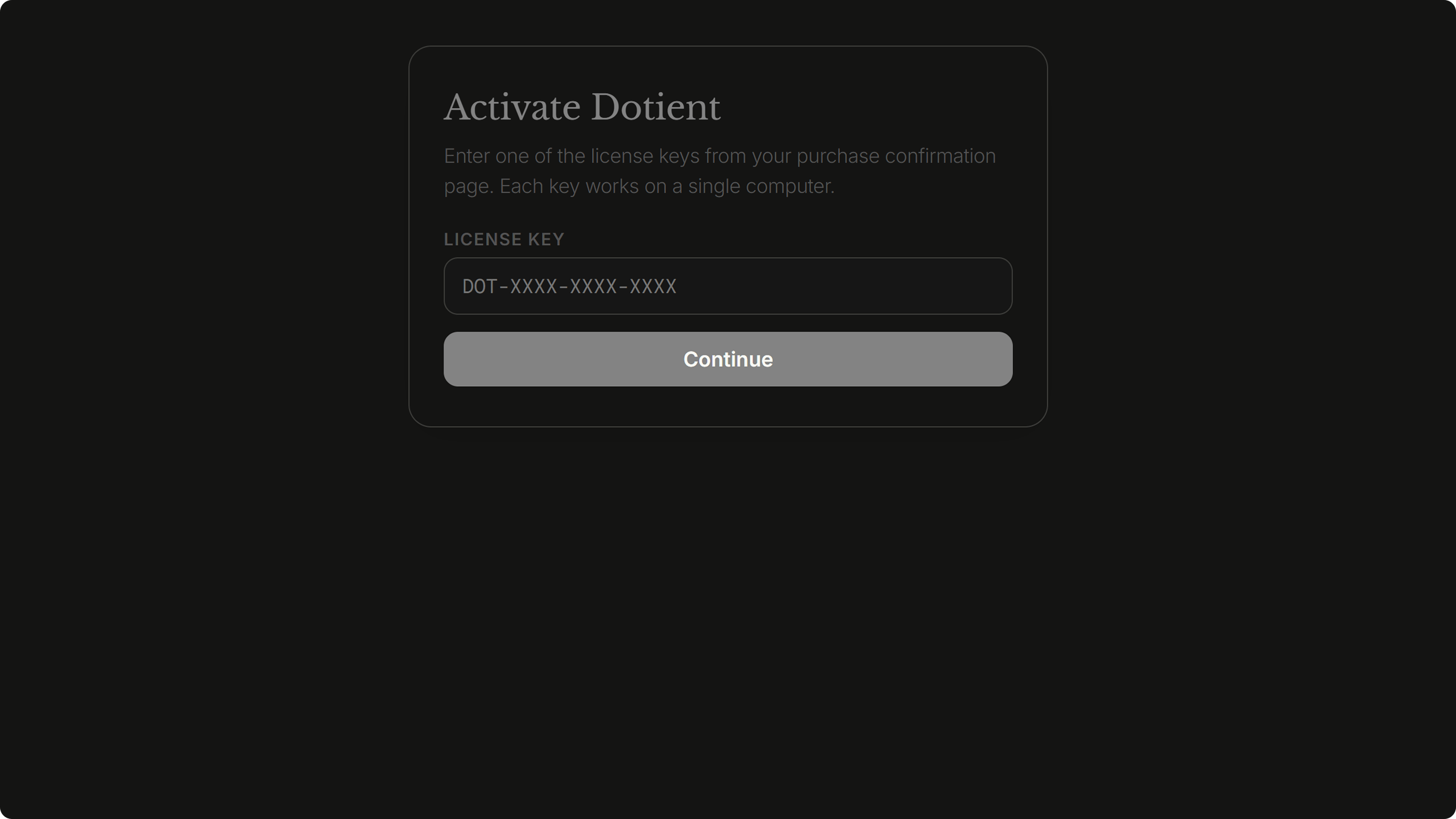
When you first open Dotient, you will see the activation screen. This is where you enter your license key. Keys look something like DOT-XXXX-XXXX-XXXX and are tied to your device.
You can get a license key by purchasing Dotient from the Pricing section on the website. After purchase, your keys will be displayed on the success page where you can download them or copy and paste them.
Enter your key, click activate, and Dotient will validate it with the server. Once activated, the app unlocks and you are free to import as many files as you want. One license works on one device at a time.
Importing Your First Files
There are three ways to get files into Dotient:
Drag and Drop
The easiest way. Just drag files or folders from your file explorer straight onto the Dotient window. You will see a processing modal pop up showing real time progress for each file, broken down into decode time, color analysis, and embedding. The backend processes each file one at a time, so large batches take a while.
File Picker
Press Ctrl+O to open your system file picker. You can select multiple files at once. The import dialog filters to common media types by default: images, videos, audio, and text files.
Clipboard Paste
You can also paste files from your clipboard directly into the gallery. Copy a file in your file explorer and paste it into Dotient with Ctrl+V.
Getting Oriented
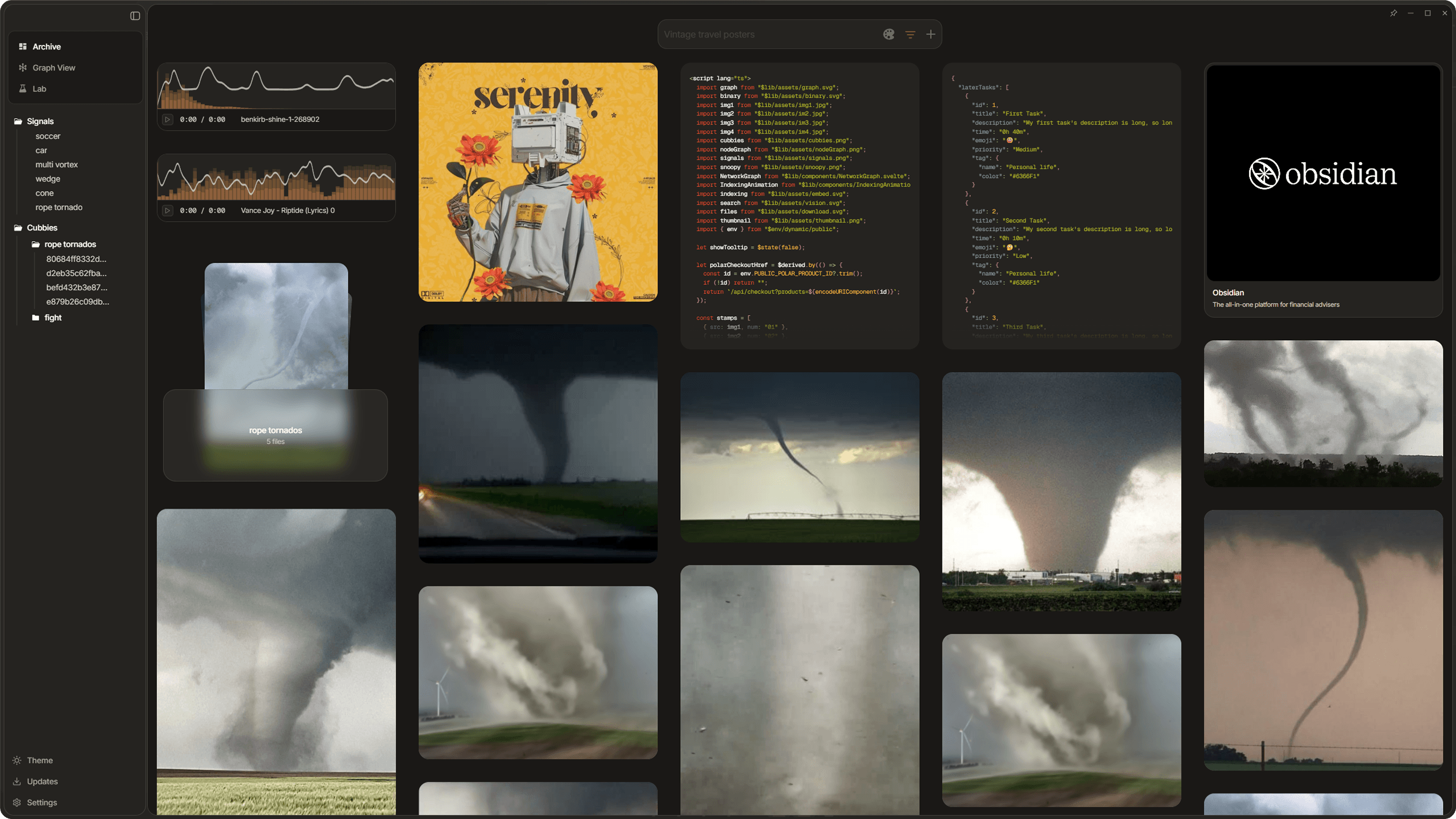
Once you have some files imported, here is a quick tour of the interface:
Sidebar (Left)
The sidebar is your main navigation hub. At the top there is a search bar. Below that are navigation buttons for the Gallery (Archive), Graph View, and Lab. Further down you will find your pinned signals (more on those later) and your cubbies. At the very bottom there are icons for toggling pin window, switching themes, opening settings, and checking for updates.
Gallery (Main Area)
This is the virtualized masonry grid showing all your imported files. Images appear at their natural aspect ratio. Audio files show a waveform visualization. Text files show a preview card. Videos show a thumbnail. You can scroll through hundreds or thousands of files smoothly because only about 60 items are rendered in the DOM at any time.
Top Bar
On macOS you will see traffic light window controls in the top left. On Windows you will see minimize, maximize, and close buttons in the top right. There is also a small processing status indicator near the controls that shows when models are downloading or files are being processed.
What Happens When You Import
When you import a file, Dotient runs it through a few stages behind the scenes:
First, the file is decoded and a thumbnail is generated (500px WebP for images). Then the dominant colors are extracted. Finally, the file gets embedded using a SigLIP model to create a semantic vector representation. These vectors are what power the similarity search, signals, and the graph. All of this runs locally on your machine using quantized ONNX models.
The processing modal shows you the timing for each stage per file. This is useful for understanding which files take the longest. High resolution images tend to have longer decode times, but embedding time is fairly consistent across files.
Frequently Asked Questions
How do I install Dotient on Windows?
Download the Dotient installer from the download page, run the installer, and follow the setup wizard. After installation, activate your license key in the settings page and you can start importing files for AI indexing.
How do I activate my Dotient license?
After purchasing a license key (Standard $10 or Lifetime $40 bundle), open Dotient and navigate to the settings page. Enter your license key to activate. Each key comes with 3 seats, and each activation takes one seat. That covers 3 computers today. If we ever release plugins for other software, like a Dotient plugin for Unreal Engine, Blender, or Photoshop, activating the same key there would take a seat too. All features are included, including visual search, signal tuning, graph view, and cubbies.
How long does it take to index my files?
Indexing speed depends on your CPU and the number of files. A typical photo collection of 10,000 images takes about 15-30 minutes on modern hardware. The AI processes files in the background using quantized ONNX models running locally on your machine. You can start searching once the initial embedding pass is complete.