Gallery
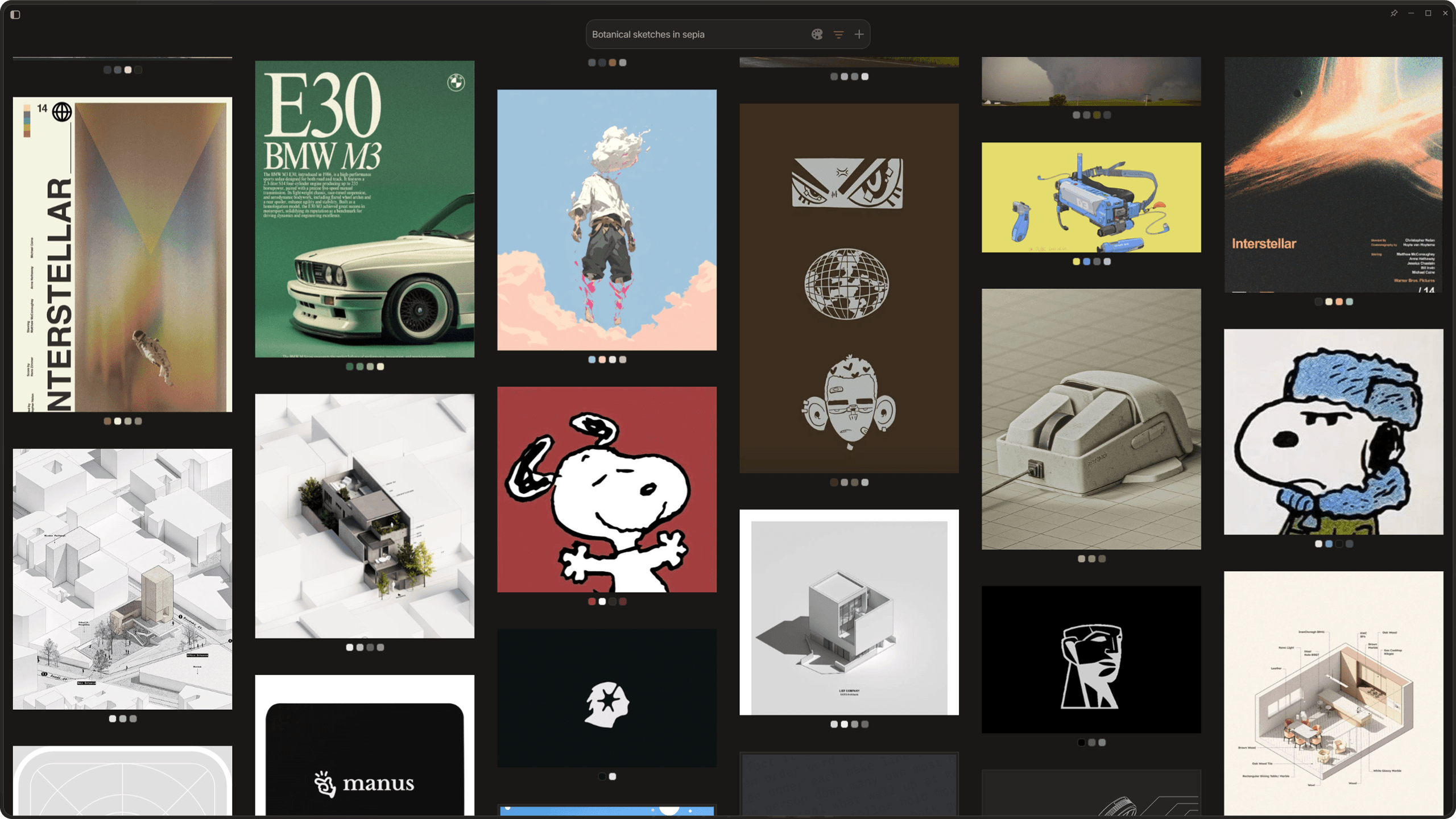
The gallery is where you spend most of your time. It is a virtualized masonry grid that shows all your imported files and lets you search, filter, and interact with them.
The Masonry Grid
Your files are laid out in a Pinterest style grid. Images keep their natural aspect ratio so nothing gets cropped. Audio files show as compact cards with a waveform visualization (60 slices of layered bars plus a centroid line). Text files appear as readable previews. Videos show thumbnails. Bookmarks and cubbies also show up here as distinct card types.
The grid is virtualized, meaning only about 60 items are actually in the DOM at any time. This is why you can scroll through thousands of files without lag. When you scroll, old items get recycled and new ones render in their place. There is a hard cap at 60 rendered items to prevent performance issues.
Searching
The search bar at the top of the sidebar is your main entry point for finding files. Type anything and the gallery filters in real time. The search bar has rotating placeholder text that cycles through example searches every few seconds, which can give you ideas for what to try.
Search works on file names and metadata. It also triggers signal matching if you have any signals set up, but we will cover that in the Signals section.
Color Search
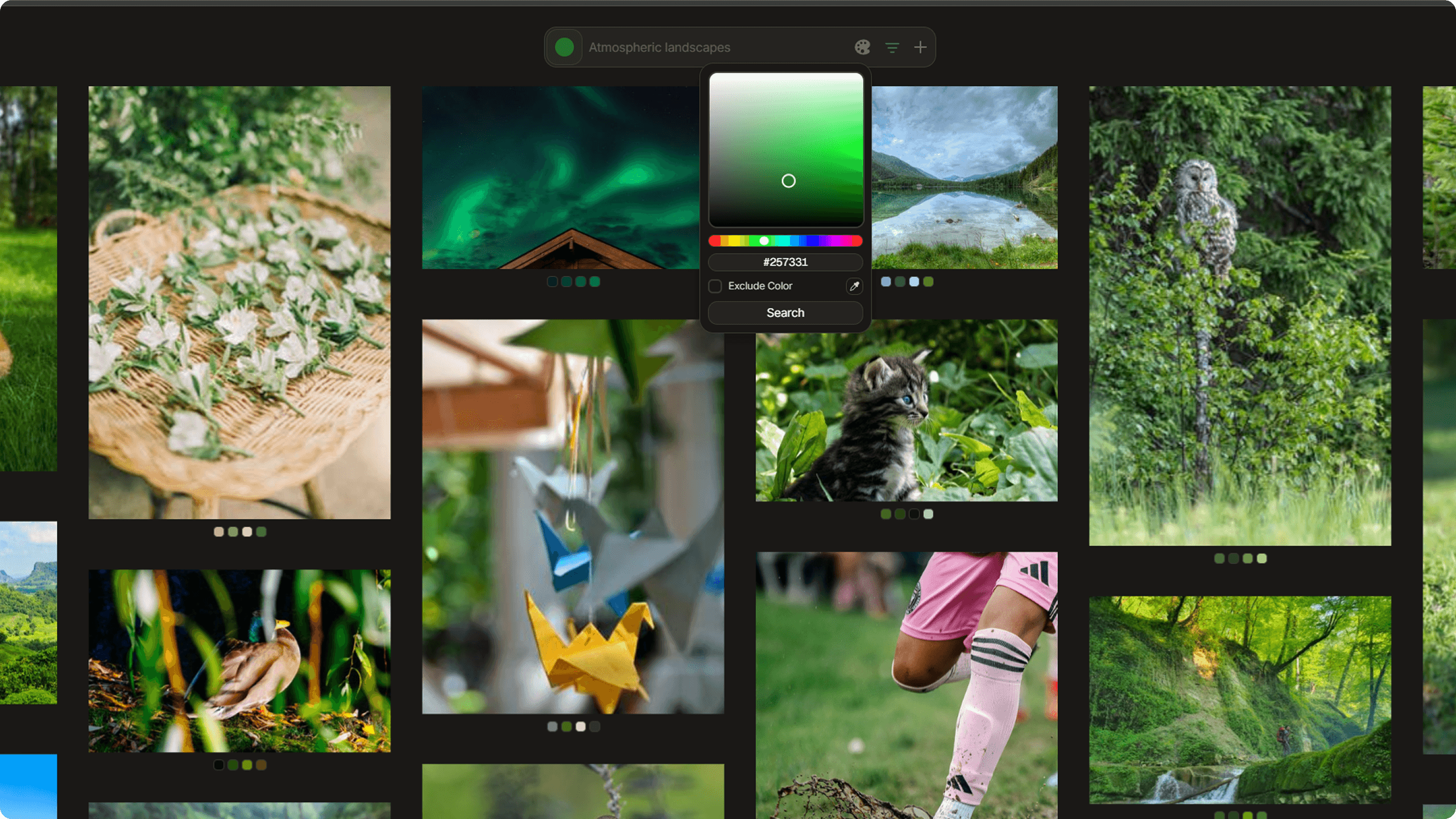
You can also search by color. Click the color picker button near the search bar to open the color picker. You can choose a color using the hue slider and saturation/brightness square, or use the eyedropper tool to sample a color from anywhere on your screen. Once you pick a color, the gallery filters to show only files that contain that color as one of their dominant colors. You can even combine text search with a color filter.
The active color filter is reflected in the URL as a ?color=hex parameter, so it survives page refreshes and back navigation.
Filtering and Sorting
Next to the search bar there is a filter dropdown with a few options:
Relevance is the default sort. It uses a deterministic seeded shuffle combined with the backend similarity algorithm to surface interesting files first. The seed is generated fresh on each page load, so you get a different ordering each time you open the app. You can force a reshuffle if you want another pass at the deck.
Oldest and Latest sort by import date. Cluster groups similar files together based on their embeddings.
Column Size
You can control the density of the grid from the settings or a quick toggle. Three sizes are available: Compact (250px columns), Balanced (350px), and Comfortable (450px). The gap between items stays at 40px regardless of size.
Metadata Visibility
Each item can show a title, file type badge, and dominant color chips. You can toggle these on and off in Settings under the Appearance tab. This is useful if you want a cleaner look or if you need more context when browsing.
Interacting with Items
Click any item to open its detail view.
Hold down right mouse button (RMB) to rectangle select multiple items. When items are selected, a floating action bar appears with options for bulk operations.
Audio Playback in the Grid
Audio files play directly in the grid. Click the play button on any audio card to start playback. Each audio item has its own hidden audio element, so you can play multiple files at once if you want. The waveform shows a playhead that moves in real time, and you can click anywhere on the waveform to seek. Hover over the waveform to see a tooltip with volume percentage and brightness data.
Media Detail View
Clicking an item opens its detail page, which gives you more information and controls depending on the file type.
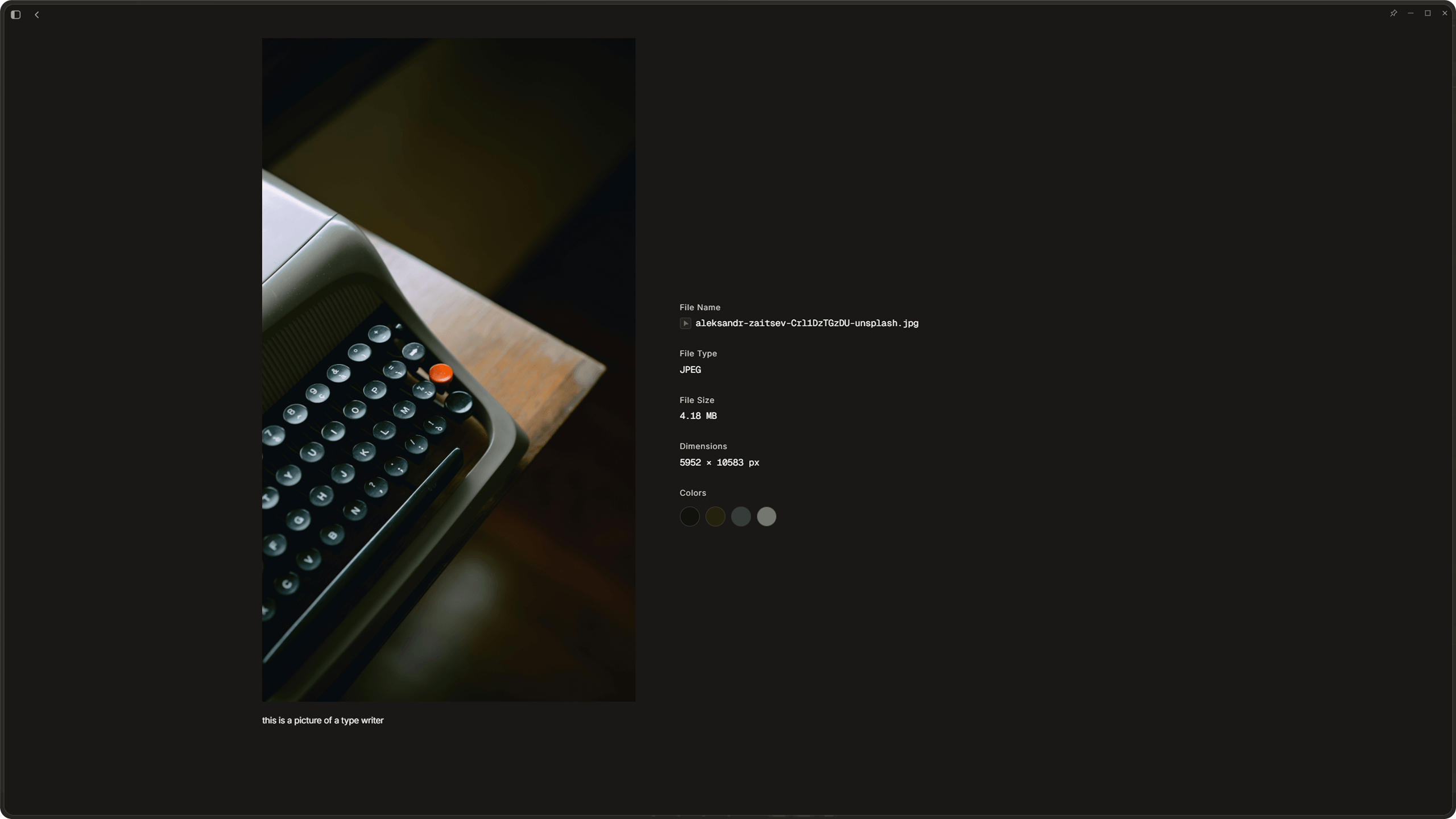
Images
The image is shown full size with object-fit: contain so nothing
is cut off. The info panel on the right shows the file name (clickable to open
in your file explorer), file type, dimensions, and the top 4 dominant colors
by ratio. Click a color chip to jump back to the gallery with that color as
a filter.
Audio
The full waveform visualization takes center stage, bigger than the inline version in the grid. Same 60 slice layout with centroid line and playhead. Click to seek. Play/pause button. Skeleton loader shows while the waveform is being generated.
Text Files
Dotient detects over 100 text file extensions. You can switch between two display formats: Plain mode shows the text in a readable serif font, and Code mode uses monospace with Prism.js syntax highlighting and line numbers. Language is auto detected from the file extension, but you can override it from a dropdown with 40+ language options. Your format preference is remembered per file.
Per File Notes
Every file has a notes section at the bottom of the detail view. You can write whatever you want there and it auto-saves after a second of inactivity. This is great for adding context or reminders about specific files.